There was a stretch where every second post in my feed was someone showing off a calculator app they built with an AI assistant. Most of them were pushing 300 lines. I kept looking at the screenshots and thinking: it is a calculator. Four operations, a display, some buttons. What is in those 300 lines?
That question was enough of a reason to try Tkinter. I had been putting it off because most Python GUI tutorials treat it like a serious undertaking, with class hierarchies and event loops explained from first principles. It is not that complicated. A window, a text field, a grid of buttons: the whole thing fit in under 70 lines on the first attempt.
Tkinter ships with the standard Python distribution and needs no separate install. It wraps Tk, a GUI toolkit that has been around since 1991.
The part that took the least code and the most thought was evaluation. Rather than writing a parser, the answer function just calls Python’s built-in eval() on whatever is in the input field:
def answer():
    ans = str(input_box.get())
    evaluate = eval(ans)
    input_box.delete(0, END)
    input_box.insert(END, evaluate)
That handles operator precedence, parentheses, and exponentiation for free. The 𝑥² button just inserts **2 into the field, which eval() resolves correctly. It is a shortcut that only makes sense in a single-user local tool; you would never do this in anything that takes input from outside.
Button layout is done entirely with .place(), positioning each one at an absolute pixel coordinate. Tkinter has proper geometry managers (pack and grid) that handle resizing and relative positioning, but for a fixed-size window with a fixed grid of buttons, absolute placement is simpler to reason about. The window is 350x500 and does not resize, so nothing ever breaks.
Full source
import tkinter as tk
from tkinter import *

calc = tk.Tk()
calc.geometry("350x500")
calc.title("CALCULATOR")

input_box = tk.Entry(calc, font=("Consolas", 15))
input_box.place(x=24, y=35, height=45, width=300)

def answer():
    ans = str(input_box.get())
    evaluate = eval(ans)
    input_box.delete(0, END)
    input_box.insert(END, evaluate)

def input_num(num):
    dv = str(input_box.get())
    num = dv + str(num)
    input_box.delete(0, END)
    input_box.insert(END, num)

def clear_display():
    input_box.delete(0, END)

def backspace():
    bs = input_box.get()
    input_box.delete(0, END)
    input_box.insert(0, bs[0:-1])

# FIRST ROW
Button(text="%",  font=("Consolas", 15), command=lambda: input_num("%")).place(x=20,  y=110, height=50, width=70)
Button(text="CE", font=("Consolas", 14), command=clear_display).place(x=100, y=110, height=50, width=70)
Button(text="C",  font=("Consolas", 14), command=clear_display).place(x=180, y=110, height=50, width=70)
Button(text="⌫",  font=("Consolas", 12), command=backspace).place(x=260, y=110, height=50, width=70)

# SECOND ROW
Button(text="(",  font=("Consolas", 15), command=lambda: input_num("(")).place(x=20,  y=170, height=50, width=70)
Button(text="𝑥²", font=("Consolas", 15), command=lambda: input_num("**2")).place(x=100, y=170, height=50, width=70)
Button(text=")",  font=("Consolas", 15), command=lambda: input_num(")")).place(x=180, y=170, height=50, width=70)
Button(text="÷",  font=("Consolas", 18), command=lambda: input_num("/")).place(x=260, y=170, height=50, width=70)

# THIRD ROW
Button(text="7", font=("Consolas", 15), command=lambda: input_num(7)).place(x=20,  y=230, height=50, width=70)
Button(text="8", font=("Consolas", 15), command=lambda: input_num(8)).place(x=100, y=230, height=50, width=70)
Button(text="9", font=("Consolas", 15), command=lambda: input_num(9)).place(x=180, y=230, height=50, width=70)
Button(text="×", font=("Consolas", 15), command=lambda: input_num("*")).place(x=260, y=230, height=50, width=70)

# FOURTH ROW
Button(text="4", font=("Consolas", 15), command=lambda: input_num(4)).place(x=20,  y=290, height=50, width=70)
Button(text="5", font=("Consolas", 15), command=lambda: input_num(5)).place(x=100, y=290, height=50, width=70)
Button(text="6", font=("Consolas", 15), command=lambda: input_num(6)).place(x=180, y=290, height=50, width=70)
Button(text="-", font=("Consolas", 15), command=lambda: input_num("-")).place(x=260, y=290, height=50, width=70)

# FIFTH ROW
Button(text="1", font=("Consolas", 15), command=lambda: input_num(1)).place(x=20,  y=350, height=50, width=70)
Button(text="2", font=("Consolas", 15), command=lambda: input_num(2)).place(x=100, y=350, height=50, width=70)
Button(text="3", font=("Consolas", 15), command=lambda: input_num(3)).place(x=180, y=350, height=50, width=70)
Button(text="+", font=("Consolas", 15), command=lambda: input_num("+")).place(x=260, y=350, height=50, width=70)

# SIXTH ROW
Button(text="+/-", font=("Consolas", 15), command=lambda: input_num("-")).place(x=20,  y=410, height=50, width=70)
Button(text="0",   font=("Consolas", 15), command=lambda: input_num(0)).place(x=100, y=410, height=50, width=70)
Button(text=".",   font=("Consolas", 15), command=lambda: input_num(".")).place(x=180, y=410, height=50, width=70)
Button(text="=",   font=("Consolas", 15), bg="#19a8b2", command=answer).place(x=260, y=410, height=50, width=70)

calc.mainloop()
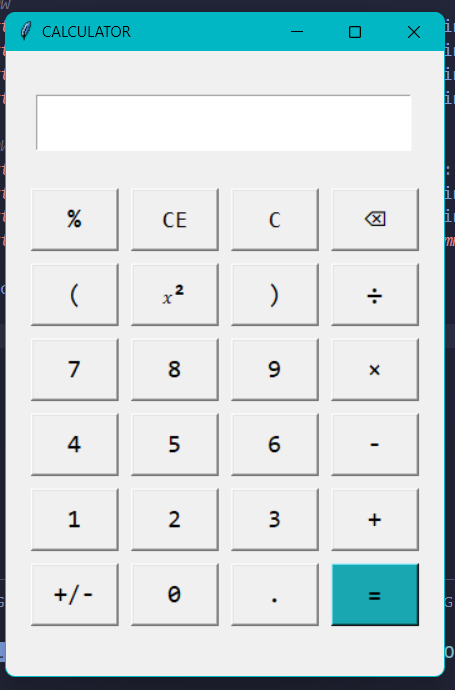
The UI looks like something from the early 2000s. That was never the point. There is a v2 using CustomTkinter if the default widget style bothers you, but the logic underneath is identical.
The source is on GitHub.
This was a learning project, not a finished tool. I wanted to see how Tkinter worked and now I do. It served its purpose.
The
eval()call has no sandboxing. It will execute anything Python can parse. Fine for a personal desktop tool, not fine for anything else.