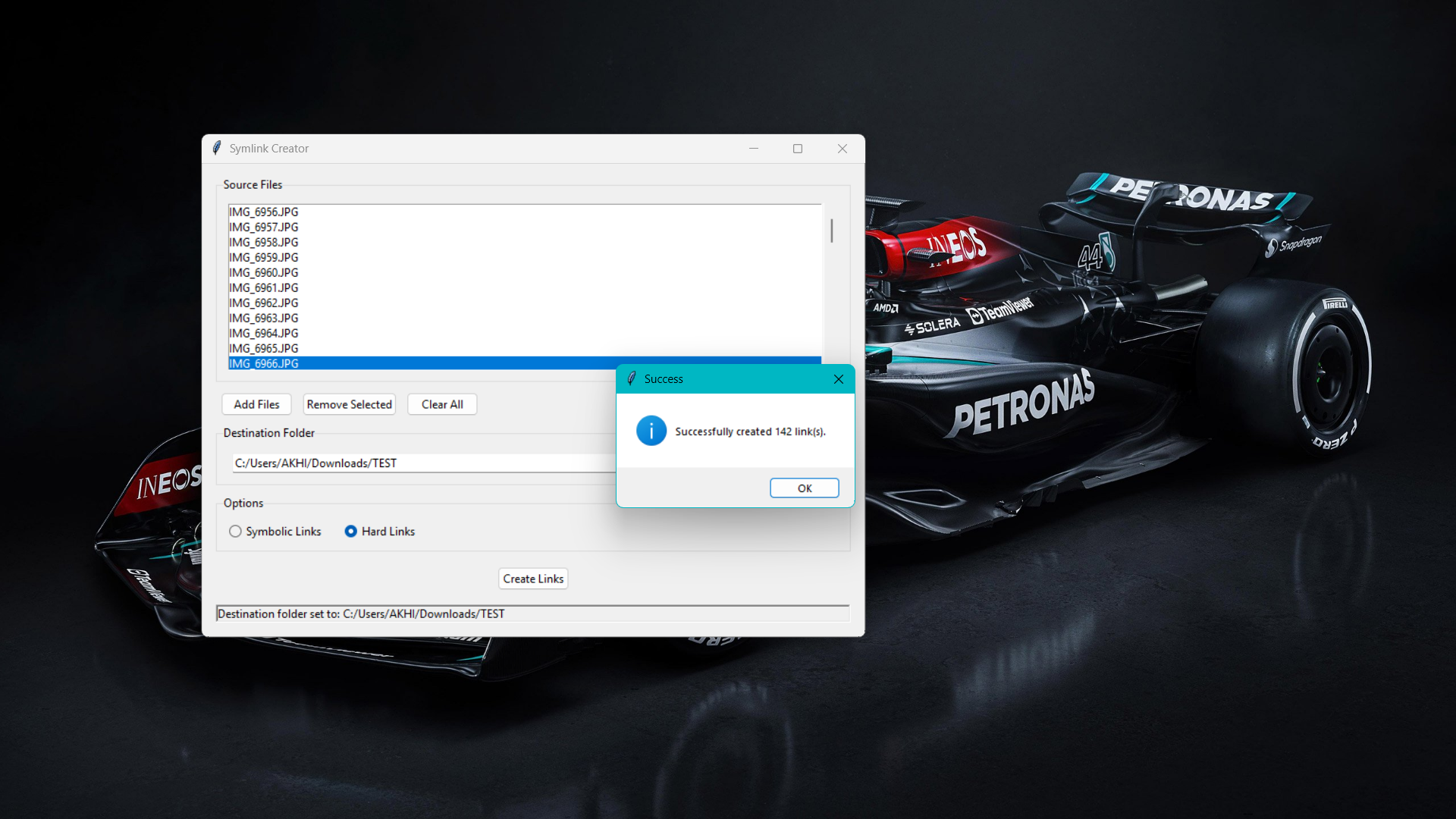
I needed to test something. Sync some files without burning disk space on duplicates. The usual answer is ln -s, and normally I’d just type it out. But I had a pile of files, not one, and typing the same command over and over started to feel like busywork instead of work. So I built SymLink Studio, a small Tkinter GUI that creates symlinks and hard links, in batches, without touching a terminal.
§The traditional way
If you already know your way around a terminal, this tool won’t save your life. You know the commands. Here they are, for context.
Windows:
mklink "C:\destination\file.txt" "C:\source\file.txt"
mklink /D "C:\destination\folder" "C:\source\folder"
Linux/macOS:
ln -s /path/to/source /path/to/destination
ln /path/to/source /path/to/destination  # hard link
Fine for one file. Annoying for twenty. And on Windows, mklink needs admin rights, which adds another layer of friction most people don’t want to deal with just to point one file at another.
§What it actually does
Select files. Pick a destination. Choose symbolic or hard. Click a button. That’s the whole workflow. Under the hood it’s just wrapping os.symlink and os.link, nothing clever:
def create_symlink(self, source, dest):
    if platform.system() == "Windows":
        try:
            os.symlink(source, dest, target_is_directory=os.path.isdir(source))
        except OSError as e:
            if "privilege" in str(e).lower() or "permission" in str(e).lower():
                raise Exception(
                    "Unable to create symbolic link. On Windows, you need to run as Administrator or enable Developer Mode."
                ) from e
            else:
                raise
    else:
        os.symlink(source, dest)
The batch part is the only thing worth mentioning. It loops over your selection, checks for existing files at the destination so it doesn’t clobber anything, and reports back what worked and what didn’t:
for source_file in self.selected_files:
    dest_path = os.path.join(self.destination_folder, os.path.basename(source_file))

    if os.path.exists(dest_path):
        error_count += 1
        error_messages.append(f"File already exists at destination: {dest_path}")
        continue

    try:
        if self.link_type.get() == "symbolic":
            self.create_symlink(source_file, dest_path)
        else:
            self.create_hardlink(source_file, dest_path)
        success_count += 1
    except Exception as e:
        error_count += 1
        error_messages.append(f"Error creating link for {os.path.basename(source_file)}: {str(e)}")
Just error handling so you’re not left guessing why half your links didn’t get made.
§Symlinks vs hard links, quickly
If you’re not sure which one you want:
Symbolic links are path references. Tiny (~100 bytes), can point across drives, can point at directories, and break if the original moves. Good for organizing things without duplicating them, like a curated playlist folder made of symlinks into your real music library.
Hard links are just another name for the same data on disk. Zero extra space, but same filesystem only, files only, no directories. Good for backups you don’t want to pay disk space for, or giving two apps access to the same config file that stays in sync automatically.
Original File: 1GB video.mp4 Symbolic Link: ~100 bytes (just the path)
Original File: 1GB video.mp4 Hard Link: 0 additional bytes (same data, different name)
Real use cases, not hypothetical ones
Testing and syncing. I had files I needed in multiple places for a test setup, without maintaining multiple physical copies that could drift out of sync. Symlinks solved that.
Media collections. Point a “Favorites” folder at tracks scattered across your real library. Delete the symlink, original’s still there.
Source: D:\Music\Artists\Radiohead\All I Need Symlink: D:\Playlists\Favorites\All I Need
Dev environment shortcuts. Symlink your .env or config into a predictable path so tools that expect it there don’t need to know your actual project layout.
Source: ~/projects/myapp/.env
Symlink: ~/.config/myapp-env
Deduplication with hard links. Same photo saved in two album folders? Hard link one to the other instead of storing it twice.
/photos/vacation1/sunset.jpg /photos/vacation2/sunset.jpg (hard linked, same data)
None of this needs a GUI to work. It needs a GUI to not be annoying when you’re doing it fifteen times in a row.
§Making it a real command
If you want it available like any other tool, add it to your shell instead of hunting for the script every time.
Bash / Zsh:
alias symlink='python3 /path/to/your/symlink_gui.py'
PowerShell:
function symlink {
    & python -u "C:\path\to\your\symlink_gui.py"
}
Reload your shell, type symlink, GUI opens. Feels like a native tool at that point.
Repo’s here if you want it: Github
:)